Skip to content
Staffiqo

Getting Started

4
  • Adding a new employee profile and inputting basic information.
  • Viewing Your Personal Calendar and Scheduled Meetings
  • How to Review Upcoming Holidays, Birthdays, and Work Anniversaries
  • test

Company Setup

5
  • Configuring Role-Based Access and Module Permissions for Different Administrators
  • Creating and Categorizing New Job Titles
  • Adding and managing global company office locations.
  • Configuring general payroll settings, time zones, and pay periods
  • zdsgdfsga

Employee Management

12
  • Configuring Role-Based Access and Module Permissions for Different Administrators
  • Creating and Categorizing New Job Titles
  • Setting Up Pay Types (Fixed Salary, Hourly, and Project-Based)
  • Configuring general payroll settings, time zones, and pay periods
  • Starting and managing the regular monthly payroll cycle.
  • Approving or rejecting time off requests as a manager.
  • Submitting a new time off request for vacation or sick leave.
  • Creating and configuring task lists for new hire onboarding.
  • Updating Emergency Contact Details and Employee Address Information
  • Assigning Departments, Job Titles, and Reporting Managers to Staff
  • Reviewing the active and inactive employee overview charts.
  • Setting up employee compensation, pay rates, and schedules

Attendance

4
  • Monitoring Attendance Deficits and Tracking Approved Overtime Statuses
  • Reviewing and manually editing employee attendance records.
  • Viewing your logged hours, paid time, and calculated overtime.
  • Clocking in and out of your work shift directly from the dashboard.
View Categories
  • Home
  • Docs
  • Employee Management
  • Setting Up Pay Types (Fixed Salary, Hourly, and Project-Based)

Setting Up Pay Types (Fixed Salary, Hourly, and Project-Based)

monir
Updated on August 23, 2026

< 1 min read

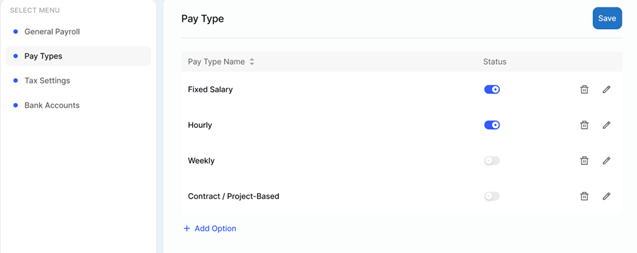
Managing employee pay types in Staffiqo allows you to structure compensation models tailored to fixed salaries, hourly wages, or project-based rates.

To set up pay types for your team

  1. Log in to your Staffiqo portal.
  2. In the side navigation menu, navigate to Settings and select Payroll (or Compensation under Employee Profile settings).
  3. Click on the Pay Types tab or select + Add Pay Type.
  4. Enter the required compensation details for the employee or role:
    • Fixed Salary: Select Fixed / Monthly, enter the base rate amount, and define the standard pay cycle (e.g., Monthly, Semi-Monthly).
    • Hourly Rate: Select Hourly, define the standard hourly rate, and configure standard/overtime work schedules.
    • Project-Based Rate: Select Project-Based / Fixed Fee, set the total fixed fee or milestone-based rate, and link it to the assigned project.
  5. Review the assigned compensation details and effective date.
  6. Click Save.

Note: Changes to pay types will apply starting from the selected effective date and will automatically update future payroll calculations.

Creating and Categorizing New Job TitlesConfiguring general payroll settings, time zones, and pay periods

Powered by BetterDocs

Leave a Reply Cancel reply

Your email address will not be published. Required fields are marked *

Share This Article :

  • Facebook
  • X
  • LinkedIn
  • Pinterest

Was it helpful ?

  • Happy
  • Normal
  • Sad
Staffiqo

All rights reserved